
This is going to be the first in a series of articles that I’m going to post to help people do a little “Self-Troubleshooting”. Keep in mind that Troubleshooting isn’t necessarily the same thing as problem solving. If you are able to resolve your issue, that would be a great side effect, but more than anything we’re trying to gather information and find the point of failure. Hopefully these tips will save you some time (phone calls to India can be time consuming) and some money. This week’s tip is how to handle a down internet connection.
The Issue
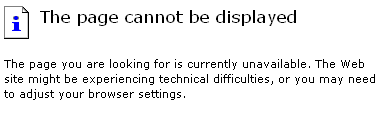
You’re sitting at your desk (at home or at the office) and you’re working on the internet. Ok, you’re actually checking Facebook for pictures of your niece that was born yesterday, but I’ll cover for you and say that you’re working. You’re doing research for a presentation online and all of a sudden every page you try to go to comes up with this:
First Step
The first thing you need to do is ask yourself a very important question. Is there someone at your company that is paid to handle this sort of issue? If there is then you should call him or her immediately and not try anything that is laid out in this article. IT Staff Persons tend to be very protective of the technology at their office and they will not like it at all if you start touching things. It won’t be pretty, there will be tears, I promise. Once they stop crying, they’ll really give it to you.
What Are You Working With?
If troubleshooting this issue falls on you then you’re going to need to know what you’re working with. Most home and small business networks have three main parts that all have the potential to be the point of failure.
-
Modem – This will most likely either be a Cable Modem or a DSL Modem. You can usually figure this out by checking to see what kind of wires are plugged into it. If it has a phone cord plugged into it, it’s most likely a DSL Modem, if it has a coax cable (think Cable TV) then it’s most likely a Cable Modem.
-
Router – For most people this will be either a Linksys or a Netgear device. Linksys will typically be black, purple, or bluish-purple, Netgear will typically be silver or white.
-
Network Card – This is the part of your computer that hooks up to the network.
Power Cycle
The first thing you want to do if you internet has gone down is Power-Cycle all of the possible points of failure. Power-Cycle is a term that basically means “reset”. I don’t know why we don’t just say “reset”, we just don’t. We say, “Power-Cycle”. There is a good reason for doing a Power-Cycle, it’s not just a way for Tech Support to keep you on the phone for a little longer. In each of these devices there is a memory chip that contains the programming for actually running the device. Sometimes small errors and corruptions can build up in this memory and cause all sorts of problems. Power-Cycling clears out the memory along with any errors and corruptions.
Power off the Modem first. Power off the Router second. Leave them both off for about 10 to 15 seconds and then power them back up in the same order. After they are both back on you can reboot your computer. This series of steps will take care of most issues and is almost always the first thing a tech will try when troubleshooting.
Narrow It Down
If doing the Power-Cycle dance doesn’t work then you’re going to have to narrow down exactly where the issue is. Not only that, but at this point you need to start preparing to contact Tech Support of some type. As you narrow down where the issue lies, you should start keeping track of any information that you come across, these notes will come in handy if you do have to contact Tech Support.
To narrow down the device that is causing the issue you’ll use several tools that are built into Windows: Ping and IP Config.
Command Prompt – To use Ping and IP Config you’ll need to get to the Command Prompt. Press and hold the Windows Key and then press R.

This will open the Run window. Type CMD in the Run Window and press Enter.
IP Config – At the prompt type IPCONFIG. You will immediately learn a few things. If your Network Card is working correctly you should get an IP Address, Subnet Mask, and a Default Gateway. If these items do not come up then chances are there is a misconfiguation on your Network Card and you will need to have someone take a look at it. Network Card settings can be widely varied and it would take more space than I have here to go through all of the possible issues.
If you do get the IP Address, Subnet Mask, and Default Gateway, you should write those numbers down. Chances are, the issue isn’t with your computer at this point, but just to be safe you should do one more thing at the prompt. Type in IPCONFIG /flushdns, this will ensure that there isn’t a DNS issue on your computer. Test out your internet now, if it doesn’t work then it’s time to soldier on.
PING – The next step is to test the Router. A Ping test will determine if you’re able to connect to the Router over the network. Here you will need your Default Gateway that was given to you in the last step. At the prompt you will need to type PING followed by a space and the Default Gateway, for example: PING 192.168.1.1
You’ll see pretty quickly if there is an issue or not. You should get several lines of text if all is working correctly. They will say something like “Reply from 192.168.1.1…” and so on. This indicates that the Router is online and able to respond. If on the other hand you receive a message saying the the request timed out, the issue may indeed be with your Router. Again, you should contact at technician for further instructions or if you want to assume the Router is bad you can try purchasing a new one and replacing it.
The Modem – So IP CONFIG and the Ping Test worked fine and you got good responses. To test the Modem you will need to move a few wires around. You want to find the cable that is connecting your computer to the Router and the cable that is connecting the Router to the Modem. You want to unplug these cables and plug your computer directly into the Modem. Do a Power-Cycle on both your computer and the Modem and test your internet again. If the internet still isnt working you should call your Internet Service Provider and let them know that there is a problem with your Modem. If the internet works fine with then you definitely should look into replacing your Router.
Final Thoughts
There are many, many possible issues that haven’t been covered here that could be causing your internet to be offline. If you throw things like a Server, Wireless Connections, or Internet Cards from Verizon or AT&T into the mix then the number of possible issues goes up incredibly fast. The most important thing to remember is that if you feel like you’re in over your head, there are people out there that can help, but there’s no reason that you can’t do a little research and information gathering on your own.
Hope this helps, let me know what you think in the comments section below.
Dennis Edmondson Jr
Computing Concepts LLC


