
Quick SubTotals
Another time saver is the SubTotal button on the Data tab (assuming you are using Excel 2007 or 2010). Let’s say you have a running list of payments that your clients have made over the last few weeks or months. You want a quick way to get the total that each client has paid without having to to do a Sum function for each client. Highlight your list of Clients and Payment Amounts and click on the SubTotal Button as I did in the picture below.
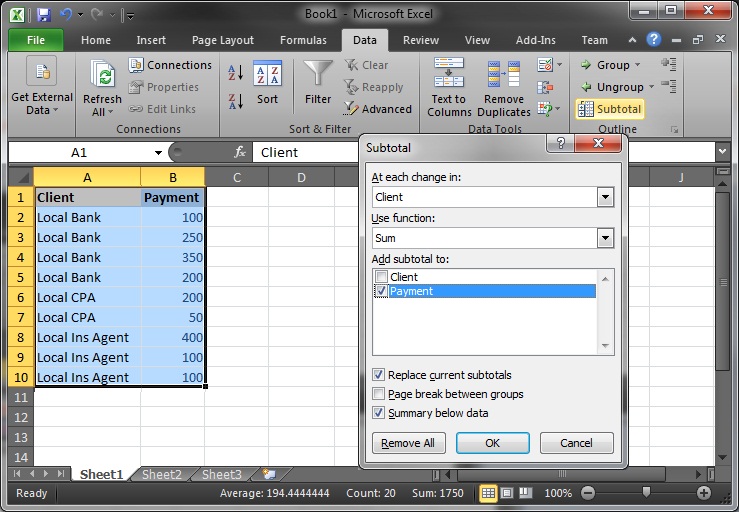
Excel is going to make some assumptions about what you’re trying to do. In my case Excel got it just right. It will be grouping by Client, using the Sum Function, and the Subtotals will be for the Payment column. When I click OK I get a few new rows with the SubTotal for each of the clients inserted into my table as you can see below.
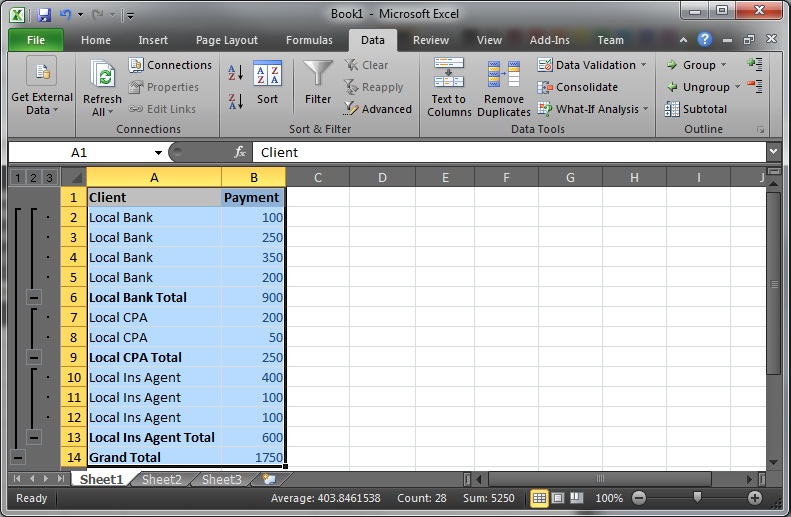
A quick word of caution about this function. Make sure you have already sorted your clients into the correct order. The SubTotal function will not sort the list for you, so you could end up with multiple subtotals for the same client.


