
Paste Special
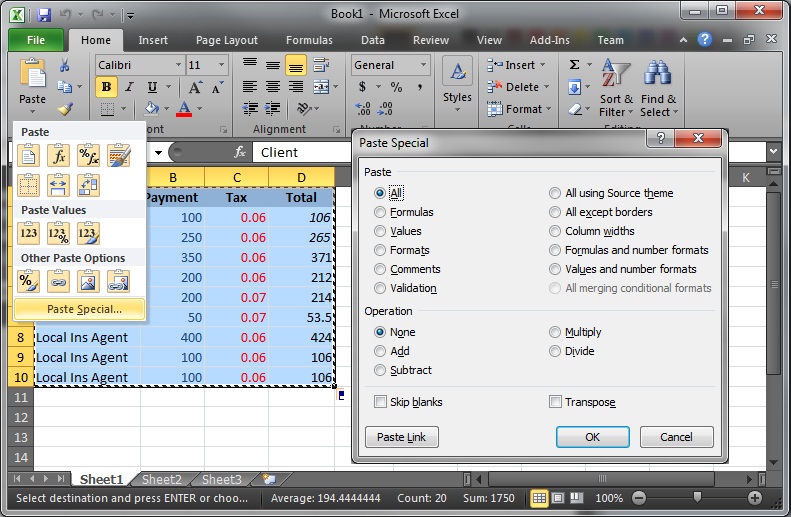
Ahhh…Paste Special, I honestly use this function more and more all the time. I’m going to cheat and include a couple of great tips in this section. Paste Special comes in handy each and every time I’m in Excel. Take a look at the image below; I’ve selected and copied a number of cells and selected a Cell that I want to paste something into. When I click on the little triangle below the Paste button I get a list of Paste Options, once I figured out what they meant they came in handy too, underneath these options is the Paste Special Button. When I click that button I get the Paste Special Box that you see in the image below.
Paste Special #1 – Values
From here, the option that i use most often is the Values option (Third down from the top in the top section). I work with a lot of formulas, in the image above all of the cells in the Total column have formulas that are adding the appropriate tax percentage to the payment and then outputting a total. A normal Copy and Paste will just put the formulas in the new location. That works great if you’re Pasting to the same worksheet. If you Paste to a different worksheet or a different Excel workbook then the references in those formulas won’t work any longer and you’ll end up with zeroes if you’re lucky and errors if you’re not. Instead, use the Paste Special and select Values. Click OK and instead of the formulas you get the result of the formulas Pasted into the selected cells. This works great when you are creating charts or graphs in one spreadsheet using numbers from another.
Paste Special #2 – Formats
The Formats option (4th from the top, in the top section) gives you a little more power than the Copy Format button discussed earlier. I use the Paste Special – Formats option when I’m Copying Formatting from one sheet to another or even one file to another. It definitely allows you to maintain some consistancy in the look and feel of your spreadsheets.
Paste Special #3 – Transpose
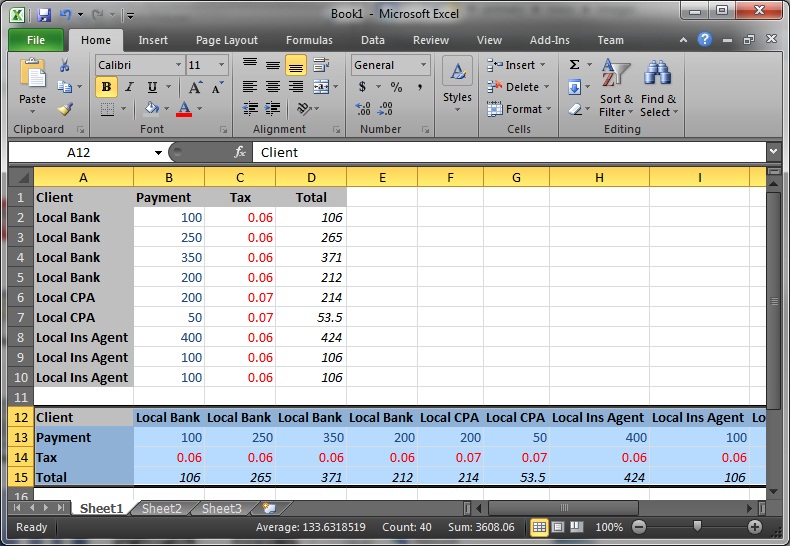
Have you ever created a table and then realized that it might make more of an impact if the Columns were Rows instead? No?…well, believe me, it happens. Highlight the Data that you want to do a Column-to-Row swap on and Copy it. Click on the cell where you want your newly swapped table to go and go to Paste Special. Now, select Transpose (the very bottom, right option in the box) and select OK. Now your Column Headers have become Row Headers like in the image below. Now that you know how to do it I’d be willing to be you use it more than you think you would.
Let me know some of your favorite Excel Tips and Tricks and I’ll make a new list in a later post with directions for them as well. Leave your Comments below!
Dennis Edmondson Jr
Computing Concepts LLC


